Digital template for iPad & iPhone · “Basic Strokes” in the app
Basic Strokes Practice Sheet
Basic Strokes Practice Sheet: a page you write on by hand, in Nokiro™, the notebook app for iPad, iPhone and iPhone Duo. Real paper, real pens.

How to use it
A row for each basic stroke, héng, shù, piě, nà, diǎn, tí and the compound ones: trace the light brush stroke, then write it freely in the squares after. Start here before whole characters. Watch where each stroke presses and where it lifts.
The basic strokes of Chinese characters, no characters: trace each light stroke, then write it on your own.
The page, area by area
- héng — Room to write, draw or stick things.
- shù — Room to write, draw or stick things.
- piě — Room to write, draw or stick things.
- diǎn — Room to write, draw or stick things.
- héngzhé — Room to write, draw or stick things.
- hénggōu — Room to write, draw or stick things.
- Group
- Chinese and Japanese
- Format
- One page
- For
- iPad, iPhone and iPhone Duo
- Tags
- chinese, strokes, calligraphy, brush, practice, beginner
Why not just a PDF template?
| What | A PDF in a note app | In Nokiro™ |
|---|---|---|
| Getting it | Buy it, download it, import it, link its pages by hand. | Catalog › Pages › “Basic Strokes” › Add to Notebook…: it goes where you want, in any notebook. |
| What you write | Ink on a picture of a page. | Read on your device: your handwriting is searchable, in the languages you write. |
| The notebook | A file among files, pages that scroll. | A real notebook: pages that turn under your finger, tabs, ribbons, a pocket. |
| Stickers and photos | Pasted images. | Sticker sheets you peel, washi tape, sticky notes, your photos cut out for you. |
| Price | Often paid per template. | Nokiro™ is free to download, with no account. |
Everything paper can’t do, in Nokiro™
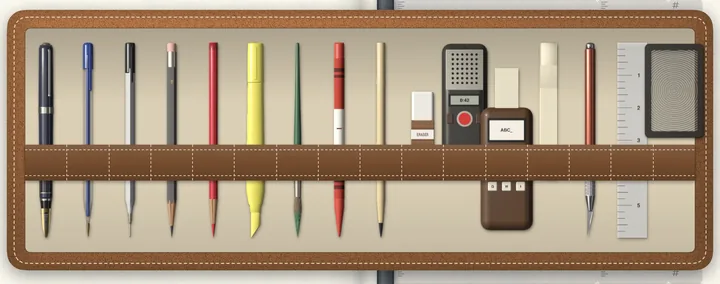
- Real pens, real paperFountain pen, fineliner, ballpoint, pencil grades, highlighters and a brush, with a finger or Apple Pencil.
- Search your handwritingOn-device AI reads every page of every notebook, in the languages you write. Print Handwriting turns it into text and keeps your hand.
- A pocket full of stickersSticker sheets you peel one by one, washi tape, sticky notes and tabs, and your own photos cut out for you.
- A recorder that listensRecord, pause, carry on; the take lands on the page as a card you play. On-device AI transcribes it in your language, offline: nothing leaves your iPad or iPhone. Imports WAV, MP3, M4A, AIFF and CAF.
- Print it, share itA PDF at true size with text you can select, or the whole notebook as a .folio file to another iPad or iPhone, by AirDrop or Files.
- Yours aloneNo account and no tracking: everything stays on your device. VoiceOver when you want it, and Reduce Motion respected.
Put Basic Strokes in your notebook
- Download Nokiro™ from the App Store and open your notebook.
- Tap Catalog, then Pages, and find “Basic Strokes”.
- Tap Add to Notebook…: choose the notebook and where it goes (here, at the front, at the end or before a section).
- Write on it with a pen or your finger, like paper.
Questions about Basic Strokes
How do I add the Basic Strokes page to my notebook?
In Nokiro™, open Catalog › Pages, tap “Basic Strokes” and Add to Notebook…. It goes into any notebook you have, with any binding, wherever you choose; the pages after it stay on their side.
Can I write on Basic Strokes with my finger?
Yes. Apple Pencil is welcome, never required: take a pen from the tray and your finger writes. Your handwriting is read on your device, so you can search it later.
Does Basic Strokes work on iPhone?
It is made for iPad, iPhone and iPhone Duo. On an ordinary iPhone Nokiro™ shows one page at a time, the size of a pocket notebook.
Is Basic Strokes a PDF template for GoodNotes or Notability?
No: it is a page of Nokiro™, a notebook app of its own, where it turns like paper and reads what you write. When you want a PDF, Export as PDF… makes one at the page’s true size, with your writing on it.
Can I print Basic Strokes?
Yes. Export as PDF… makes a PDF at the page’s true size, with your writing and any typed text you can select. Printing and sharing are always free.
More answers in Support & FAQ, or see how it feels.


