Digital planner stickers
Book Nook
For people who read and write: books, tea and a quiet corner. Sticker sheets for the pocket of your notebook in Nokiro™: peel one, drop it on the page, write over it.
Download on theApp Store Free to download · no account
- Sheets
- Soft, Bright
- By
- Nokiro™
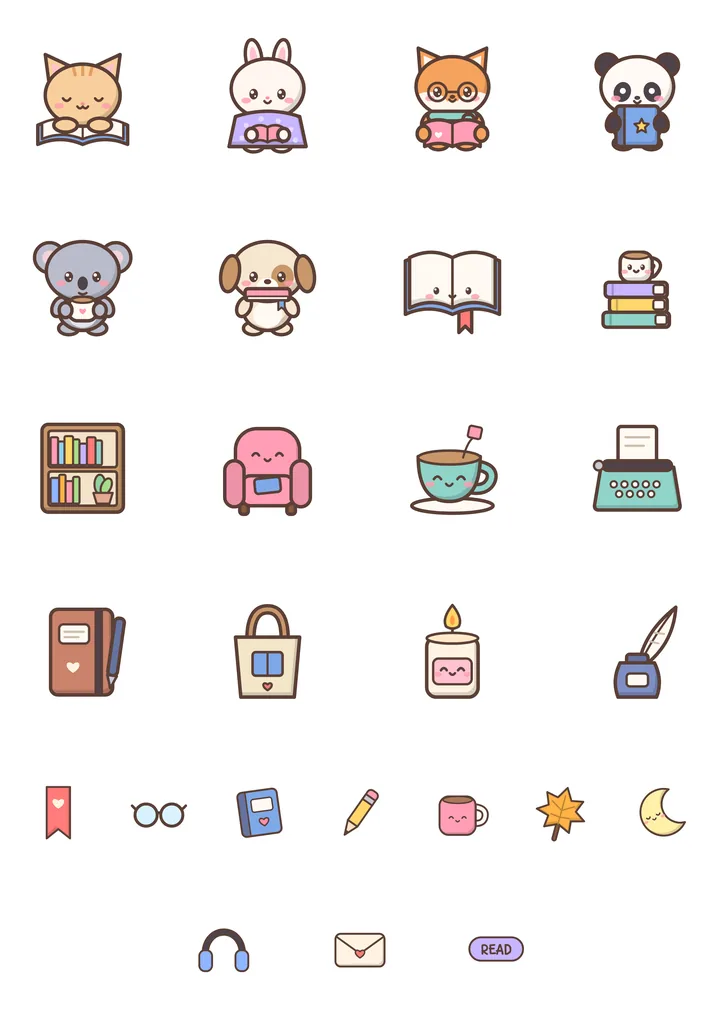
Soft
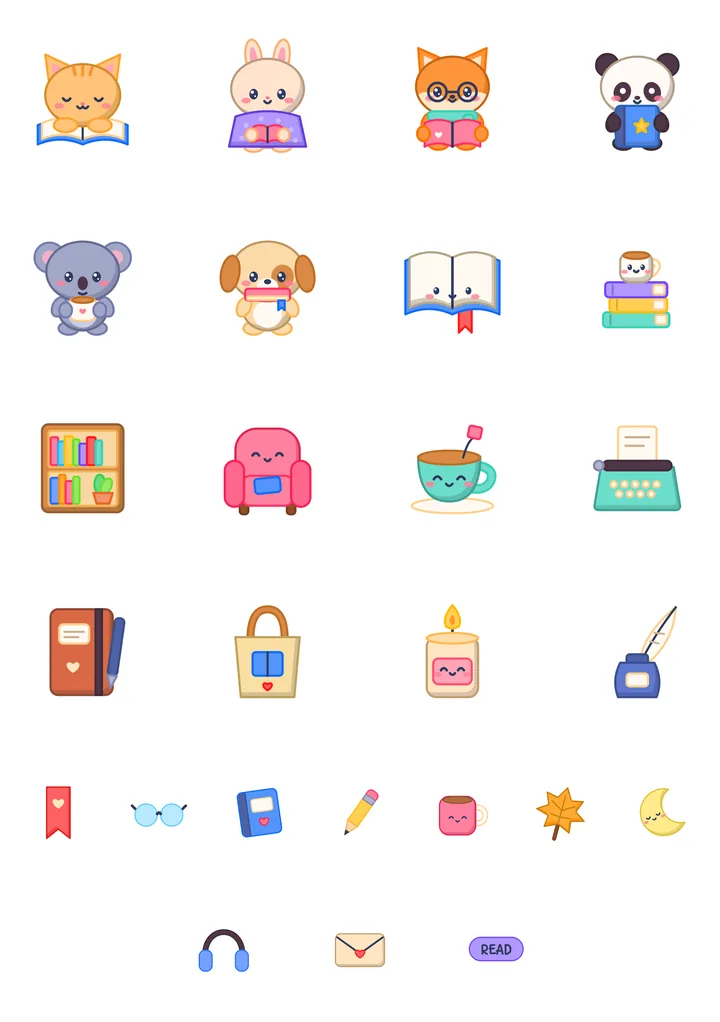
Bright
Why not just a PDF sticker pack?
| What | A PDF in a note app | In Nokiro™ |
|---|---|---|
| Getting them | Buy a pack of PNGs, crop each one, paste it. | Add to Notebook…: the sheets go into the notebook’s pocket, already cut. |
| Using them | Copy, paste, resize. | Peel one from its sheet like the real thing, drop it, move it, write over it. |
| Your own | Cut them out yourself. | From Photos… cuts the stickers out of your picture for you. |
| Price | Often paid per pack. | Nokiro™ is free to download, with no account. |
Everything paper can’t do, in Nokiro™
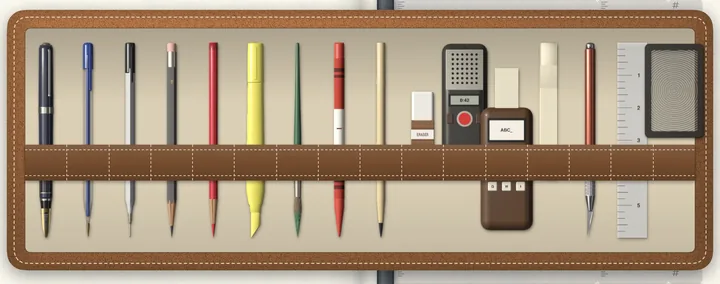
- A pocket full of stickersSticker sheets you peel one by one, washi tape, sticky notes and tabs, and your own photos cut out for you.
- Photos, videos, the webPaste, drag or share photos in; the craft knife cuts out the subject. YouTube links become cards that play, and pieces of web pages arrive from the share sheet.
- Real pens, real paperFountain pen, fineliner, ballpoint, pencil grades, highlighters and a brush, with a finger or Apple Pencil.
- Change your mindA lasso moves, copies or cuts what you circle. Undo and redo for each notebook, still there after a restart.
- Print it, share itA PDF at true size with text you can select, or the whole notebook as a .folio file to another iPad or iPhone, by AirDrop or Files.
- Yours aloneNo account and no tracking: everything stays on your device. VoiceOver when you want it, and Reduce Motion respected.
Peel your first Book Nook sticker
- Download Nokiro™ from the App Store and open a notebook.
- Tap Catalog, then Stickers, and open “Book Nook”.
- Tap Add to Notebook…: the sheets go into that notebook’s pocket.
- Open the pocket, peel a sticker and drop it on the page.
Download on theApp Store Free to download · no account · no tracking
Questions about Book Nook
How do I use the Book Nook stickers?
Open the pocket of your notebook and the sheet: hold a sticker, peel it and drop it where you want. Move it, resize it with two fingers, write over it.
Can I make my own stickers?
Yes. In the pocket, + and From Photos… cuts the stickers out of your own picture for you.
Do stickers use up?
Each sheet is a copy for that notebook: a sticker you peel leaves its place, like a real sheet. Add the sheet again for a fresh one.
More answers in Support & FAQ, or see how it feels.


